Start with two small, explicit files
The first CSV contains an illustrative cup at EUR 12.50 and a plate at EUR 8.25. The second changes the cup to EUR 11.75 while keeping both supplier SKUs, availability and minimum orders unchanged. These files contain no GTIN: each product keeps its source-specific identity. They do not demonstrate cross-supplier product matching.
Use the linked CSV files below to repeat the example in a separate test workspace. The amounts are unit prices, and the quantities use an illustrative individual-unit basis. No supplier endpoint, credential or real commercial record is included.
sku,name,price,stock,minimum
DEMO-CUP-01,Illustrative cup,12.50,48,6
DEMO-PLATE-02,Illustrative plate,8.25,0,12| Supplier SKU | First file | Next file | Availability / minimum |
|---|---|---|---|
| DEMO-CUP-01 | EUR 12.50 | EUR 11.75 | 48 / 6 |
| DEMO-PLATE-02 | EUR 8.25 | EUR 8.25 | 0 / 12 |
Review the file before it changes offers
In Sources, choose Add manual file source, name it Illustrative supplier A and keep an explicit freshness period. Choose Create source and select the first CSV. Keep comma as Column separator, point as Decimal separator and EUR as Currency.
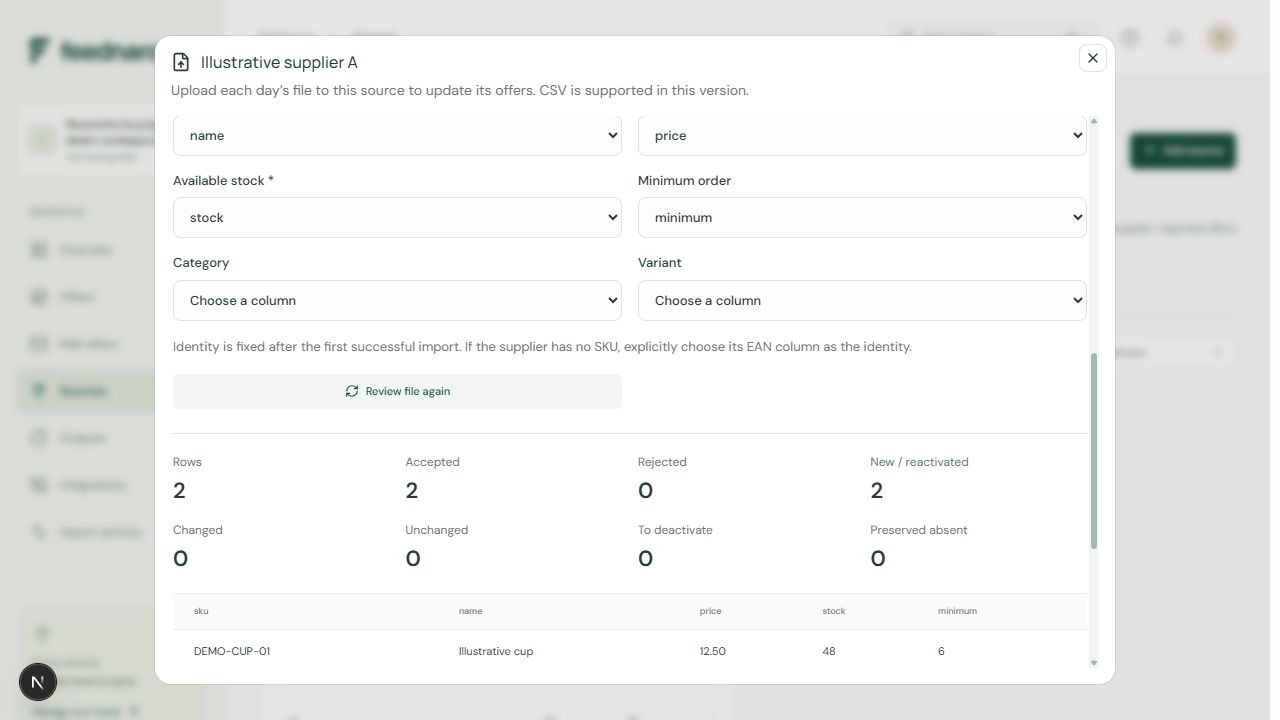
Choose Upload and review. Map sku to Supplier identity (SKU or EAN), name to Product name, price to Unit price, stock to Available stock and minimum to Minimum order. Leave EAN / GTIN unmapped. Choose Review file again after changing the mapping, then check Rows 2, Accepted 2 and Rejected 0. Inspection alone has not imported the offers.
Confirm the import and check its receipt
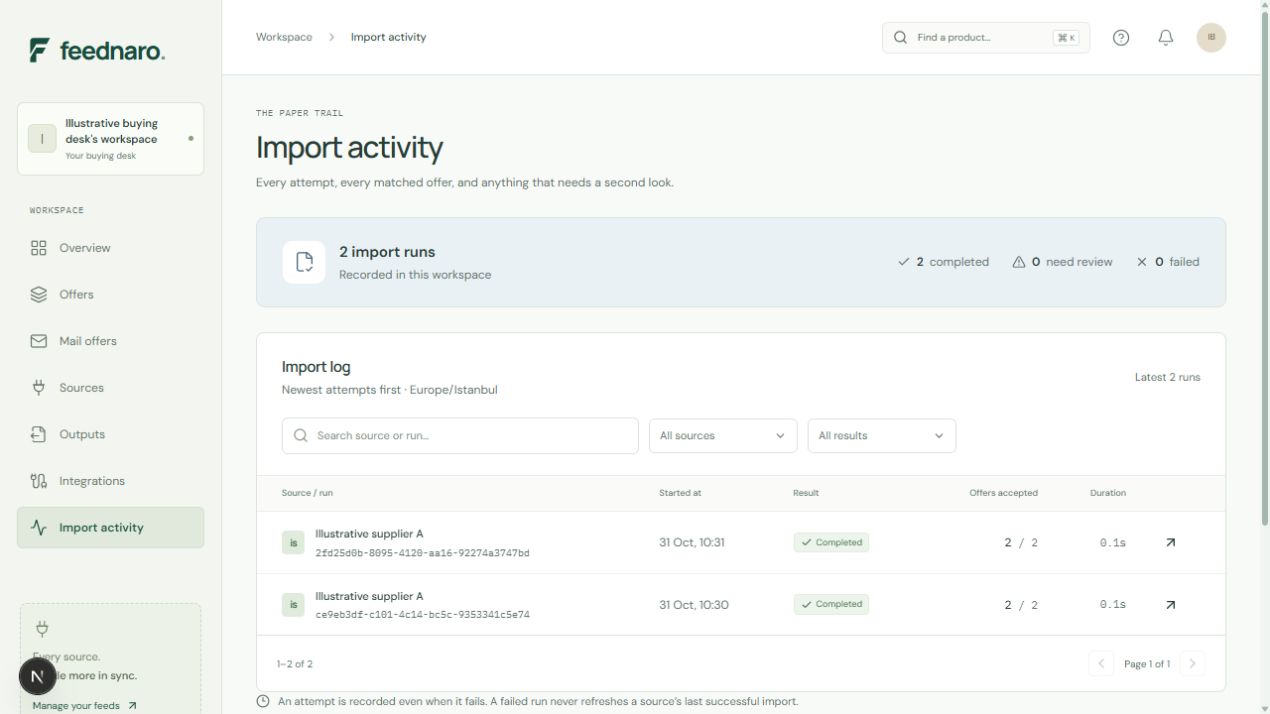
Choose Update offers and wait for completion in Import activity or Upload history. Queued means the request was accepted, while a completed receipt confirms that offers were updated. In this controlled walkthrough, the first file produced two accepted rows and no rejected rows.
Open Offers and find DEMO-CUP-01. The cup has availability 48 and minimum order 6. The plate still has a recorded price but reports zero availability, so it is not an in-stock current-lowest offer. These are supplier-reported quantities, separate from warehouse stock.
Read the next delivery in price history
On the same source choose Upload file and select supplier-a-next.csv. Review the saved header-based mapping and all-file counts, then choose Update offers. The stable supplier SKU updates the cup's existing offer instead of creating a second product.
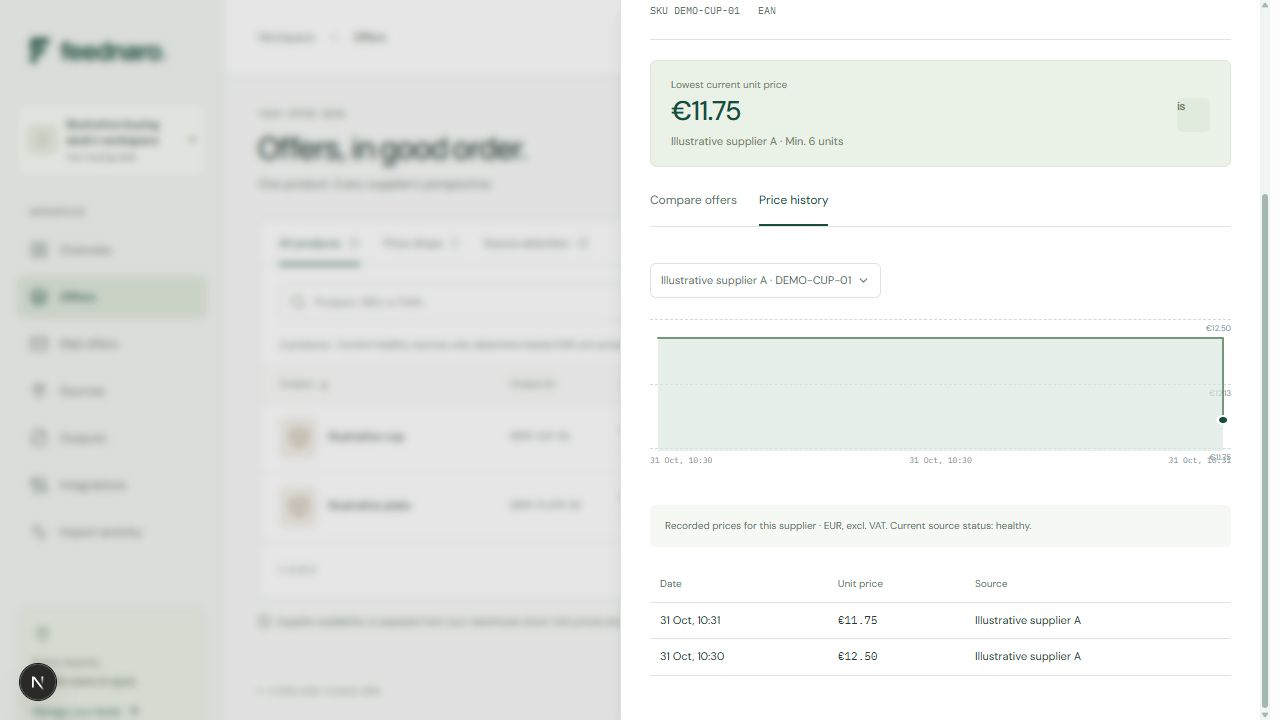
After the second completed import, open the cup from Offers and choose Price history. Select the illustrative supplier's SKU and EUR. The recorded observations show EUR 12.50 followed by EUR 11.75. Both files were imported during the same verification session: these points are not claimed to be two days of supplier history.
The difference is EUR 0.75 per unit, or 6% of the first recorded price. This is arithmetic on invented values, not measured customer savings. VAT, delivery, currency conversion, pack conversion and purchasing decisions are outside this example.
What this example establishes
The screenshots were captured from the running application in a separate local test workspace. File selection, review, mapping and confirmation used the actual interface. Processing the selected files produced the offers, completed receipts and recorded price observations shown here.
The test completed queued processing through a controlled test driver. It did not run a production supplier connection or verify automatic scheduled downloads. It also does not establish cross-supplier GTIN matching, ERP/PIM transfer, real demand, customer acceptance or financial results. Use the separate matching and comparison guides for those decisions, and validate your own supplier's file before relying on it.
Review a file from your own supplier.
Create a workspace, add a manual CSV source and check the fields before updating offers.